
9 Hidden Settings to Make iPhones More Accessible for Older Adults

By Shannon Stocks, MS, CCC-SLP
Speech-Language Pathologist
You are in the middle of a sit-to-stand task with your patient, Patty, when you hear the faint yet distinct polyphonic tone of her cell phone. The sound is emanating from a baby blue nylon purse sitting atop the kitchen counter.
“Should I get that?” you ask.
“Get what?” Patty responds, focused on securing her hands on both armrests and easing back into her recliner.
You smile from behind your face mask. “I think it’s your phone that’s ringing—do you mind if I get it for you?”
“Go right ahead,” Patty sighs. “It’s probably a scam anyway.”
You dart to the counter and back, placing the iPhone in Patty’s outstretched palm. She squints down at the small text lighting up her screen.
“Hello? Hello? I don’t think they can hear me,” Patty says, emphatically pressing the home button.
“Try swiping your finger across the screen to answer the call.” Patty moves her index finger across the screen a few times.
“It’s not working,” she says, the frustration in her voice growing.
“Do you mind if I help?” you offer. Patty nods, but as you reach for the device, you realize the call has already been forwarded to voicemail.
Smartphones aren’t just for younger generations anymore. And, while smartphones are becoming more affordable and readily available, these devices are not necessarily intuitive for older adults to use. In fact, most smartphones are hardly designed with older adult accessibility in mind.
9 iPhone Accessibility Settings to Assist Older Adult Patients
Many of us are familiar with certain iPhone modifications that can help older adults, such as increasing text size or color contrast to improve readability by making words and pictures more defined. Even opting to display an on-screen keyboard is a widely known accessibility feature. However, there are other features that are rarely explored. Here are a few lesser-known iOS settings that can help your geriatric patients with iPhone accessibility:
1. VoiceOver
This accessibility feature verbalizes items on the screen and even provides helpful hints. Your patient can control VoiceOver using a simple set of gestures. Simply tap once to select an item, and double-tap that item to activate VoiceOver. You can even adjust the speaking rate for your patient, slowing down the rate of speech to ensure they understand what is being said.
Settings > Accessibility > VoiceOver
2. Zoom
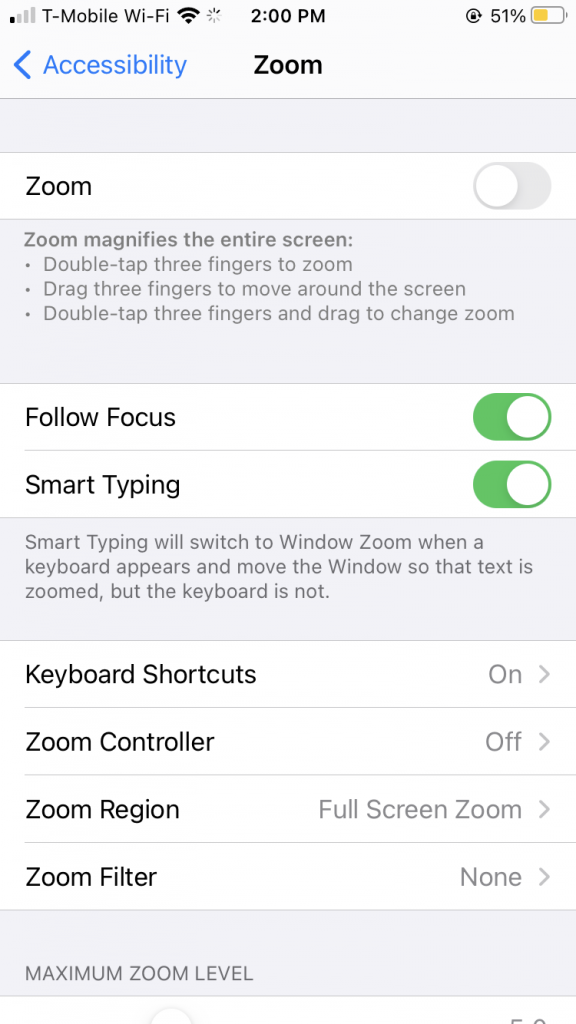
When enabled, this feature magnifies the entire screen when your patient double taps the screen with three fingers. Your patient would then have to drag three fingers to move around the screen. This can allow your patient to zoom in and get a closer look at anything on the phone’s screen, from text messages to photographs.
Settings > Accessibility > Zoom
3. Smart Typing
Smart typing utilizes zoom so that when your patient is typing a message, the phone will automatically move the window so that the text is zoomed, but the keyboard is not. This can assist your patient with typing messages to loved ones with greater ease.
Settings > Accessibility > Zoom > Smart Typing
4. Magnifier
This feature allows your patient to essentially use the iPhone’s camera as a magnifying glass. Your patient may use this feature to read a newspaper or letter in their immediate environment.
Settings > Accessibility > Magnifier
5. Display and Text Size
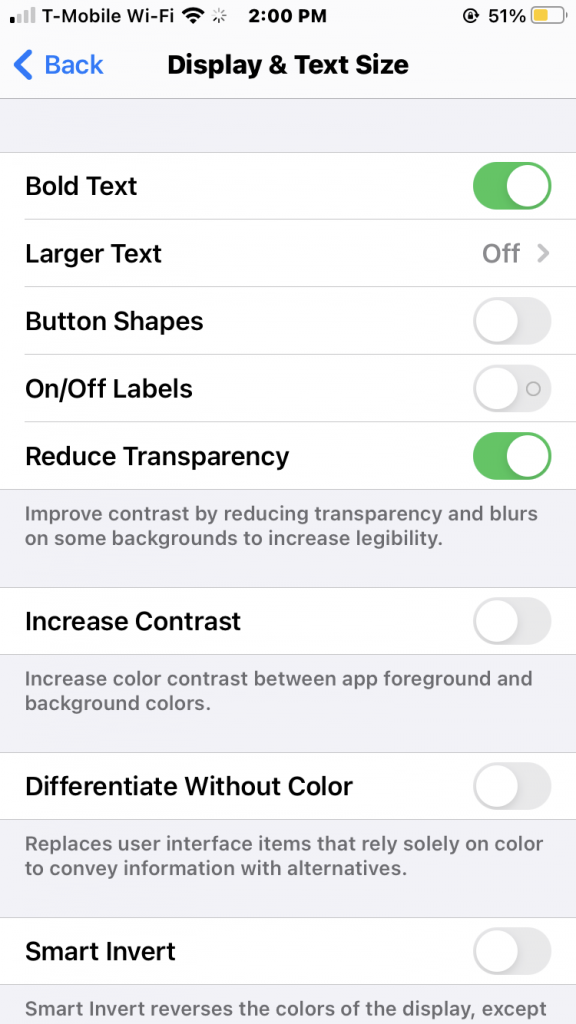
While the ability to change font size may be widely known, there are additional features in this category that can make a world of difference for our patients with even the slightest visual impairment. In addition to enlarging the on-screen text, you can also enable bold text or reduce transparency to improve contrast and readability.
Settings > Accessibility > Display & Text Size > Bold Text
Settings > Accessibility > Display & Text Size > Larger Text
Settings > Accessibility > Display & Text Size > Reduce Transparency
6. Reduce Motion
By activating this feature, you are reducing the motion of the user interface, including the effects of icons. By reducing these transition animations, you are helping to make your patient’s phone feel snappier and faster.
Settings > Accessibility > Motion > Reduce Motion
7. Spoken Content
For patients with possible auditory processing disorders or visual impairments, enabling spoken content could be an effective way to increase accessibility. The “Speak Screen” feature allows patients to hear the content of their screen by swiping down with two fingers from the top of the screen.
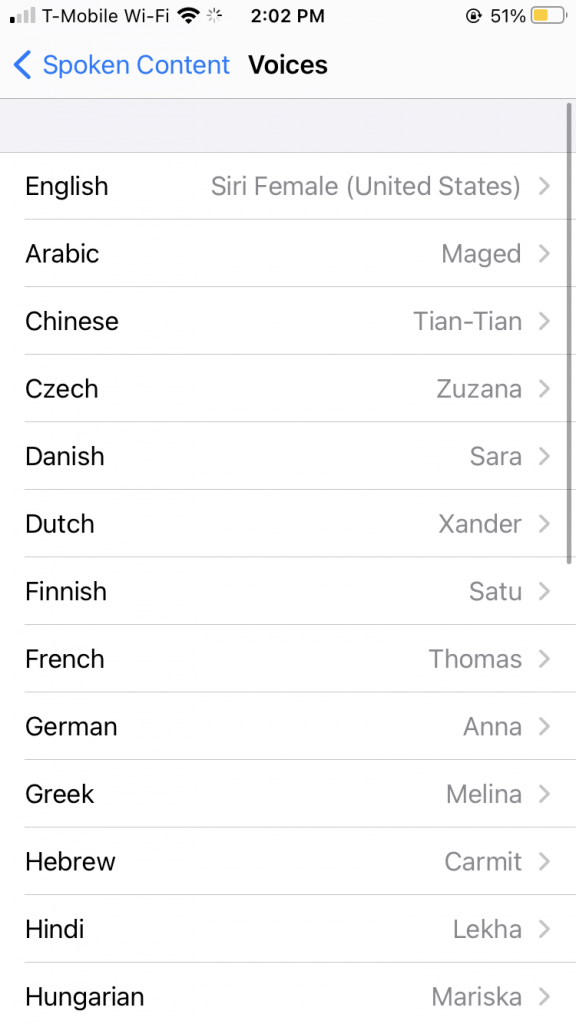
Additionally, the “Typing Feedback” feature enables spoken whole words while your patient is typing. The “Speak Auto-text” option lets your patient’s device automatically voice auto-corrections and auto-capitalizations. Under the “Voices” feature, you can then adjust the spoken language to be consistent with your patient’s primary form of communication.
Settings > Accessibility > Spoken Content > Speak Selection
Settings > Accessibility > Spoken Content > Speak Screen
Settings > Accessibility > Spoken Content > Typing Feedback > Speak Words
Settings > Accessibility > Spoken Content > Typing Feedback > Speak Auto-text
Settings > Accessibility > Spoken Content > Voices
8. Audio Descriptions
Another feasible option for individuals with auditory processing disorders or visual impairments could be accessing “audio descriptions.” This feature will automatically play audio descriptions of something on your patient’s screen, when available.
Settings > Accessibility > Audio Descriptions
9. Touch
Assistive touch allows your patient to use the iPhone if there is difficulty with touching the screen or if your patient is using an adaptive accessory such as a joystick. Custom actions can even allow your patient to interact directly with the AssistiveTouch icon without opening the menu. For example, a single tap, double-tap, or long-press can activate this assistive feature.
Settings > Accessibility > Touch > AssistiveTouch

Helping Older Adults Choose the Right Cell Phone
For some, adjusting the settings on a current smart device may be the best way to navigate with ease. For others, opting for a simpler device could be a better option. But before recommending that your patient revert to a flip phone, try a few of these tricks to make your patient’s iPhone more user-friendly.
If the device remains a persistent challenge despite these modifications, pursue other solutions such as Jitterbug, Lively Flip, Vtech, GrandPad, or Senior Cell. However, try playing around with your patient’s current device first before introducing new technology.
Older adults deserve to enjoy the same technology as everyone else. Although it may require a little extra fine-tuning, by implementing setting changes you will deliver an invaluable service and the highest quality of care.